Your university profile page belongs to the university. When you leave, the university can delete it or move it, and the links people shared stop working. A site on your own domain stays with you when you change jobs. With your name in the domain and the title, it can be the first result when someone searches for you.
Short answer: get a domain with your name and WordPress hosting, install a block theme, and make six pages: Home, Research, Publications, Teaching, CV and Contact. You don’t need a page builder, and a plugin only if you have hundreds of papers. Everything below was checked in WordPress 7.1.
What an academic website needs
A faculty site usually has these parts:
- Your name, position and affiliation at the top of the homepage, with a photo.
- A short research summary: three or four sentences a non-specialist can follow.
- Publications with DOI links and PDFs.
- A CV as a PDF with the date of the last update.
- Teaching: courses, syllabi, office hours.
- Contact and profiles: email, ORCID, Google Scholar, GitHub if you share code.
- Optional: lab members, talks, news or a blog.
Step 1. Get a domain, hosting and WordPress
Use your name for the domain: firstnamelastname.com, or a variant with your initial or “lab” if it’s taken. Leave your current university and project out of the address: you will probably leave both. A .com domain costs about €10–15 a year.
Then you need hosting with WordPress. Most hosting companies install it in one click from their control panel, and a small personal site fits on the cheapest shared plan, a few euros a month. Pick a host that makes daily backups you can restore yourself.
WordPress.com is the hosted option, with no server to manage. On the free plan you only pick from WordPress.com’s own themes. To upload a theme such as Makoa PRO, you need a paid plan that allows theme uploads, so check the plan before you pay.
Some universities offer their own WordPress hosting for faculty. It costs nothing, but you don’t own the server. If you start there, keep a copy of the content (Tools → Export) so you can move it later.
Step 2. Choose a block theme
A block theme lets you edit every part of the site in the Site Editor: the header with your name, the menu, the footer and every page layout. You will add a paper, a talk or a course every few months, and in a block theme you do that in the editor, without code.
Here are four block themes that fit a researcher. Full disclosure: I made the first one. The quick picks:
- You have a long record and want a homepage made for it: Makoa PRO with the Scientist homepage.
- You don’t want to install or pay for anything: Twenty Twenty-Five with the CV/bio page.
- You write field notes or essays about your research: Substrata.
- You only need your CV online: LeanCV.
Makoa PRO: a homepage for scientists (paid)

Makoa is a free theme for personal websites, black and white by default. The free version has a homepage with a hero, biography, projects and contacts, plus a dark style.
Makoa PRO adds 48 patterns, 8 color styles and a full Scientist homepage: a hero with your title and research focus, professional roles with dates, tools and methods, mentors, honors and awards, and contacts.
The catch: the Scientist homepage is PRO only. Neither Makoa nor Makoa PRO has a publications pattern: you build that page from core blocks, as in Step 5. If you don’t want to pay, Twenty Twenty-Five’s free CV/bio page is a closer fit.
Price: Makoa is free on WordPress.org, 400+ active installs. Makoa PRO costs €50 for a year of updates or €125 for life.
Twenty Twenty-Five: the default theme with a CV page
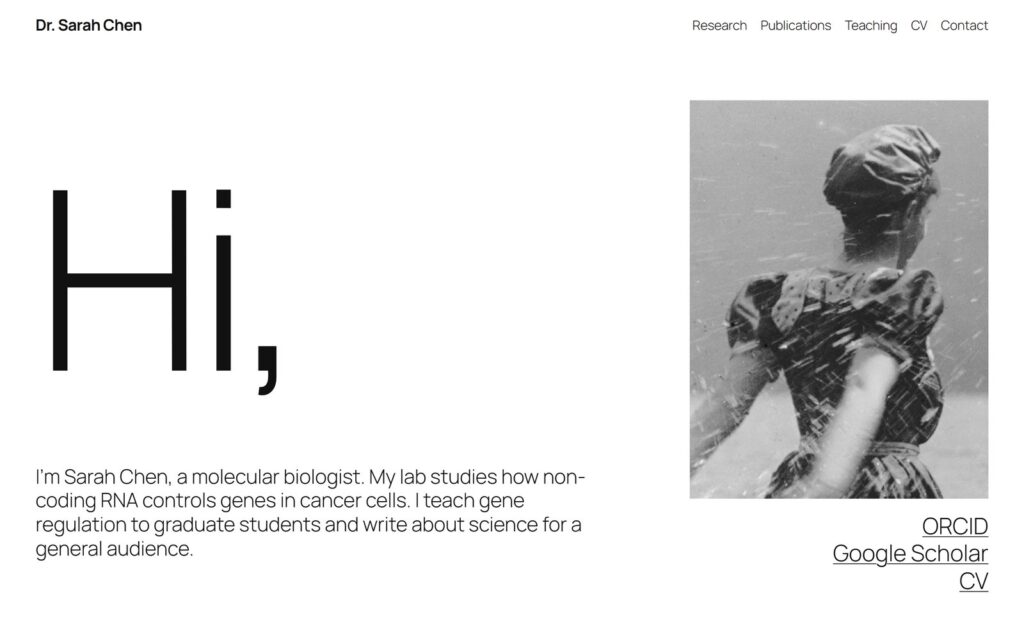
Twenty Twenty-Five is the default WordPress theme, so it’s probably installed already. It shows 70 patterns in the inserter, and one of them is a full page called CV/bio. Create a new page and WordPress offers it right away in the Choose a pattern window.
The catch: it’s made for every kind of site, so you’ll skip most of the patterns, and the homepage is a blog by default. You’ll set a static homepage yourself.
Price: free, more than a million active installs.
Substrata: a research journal
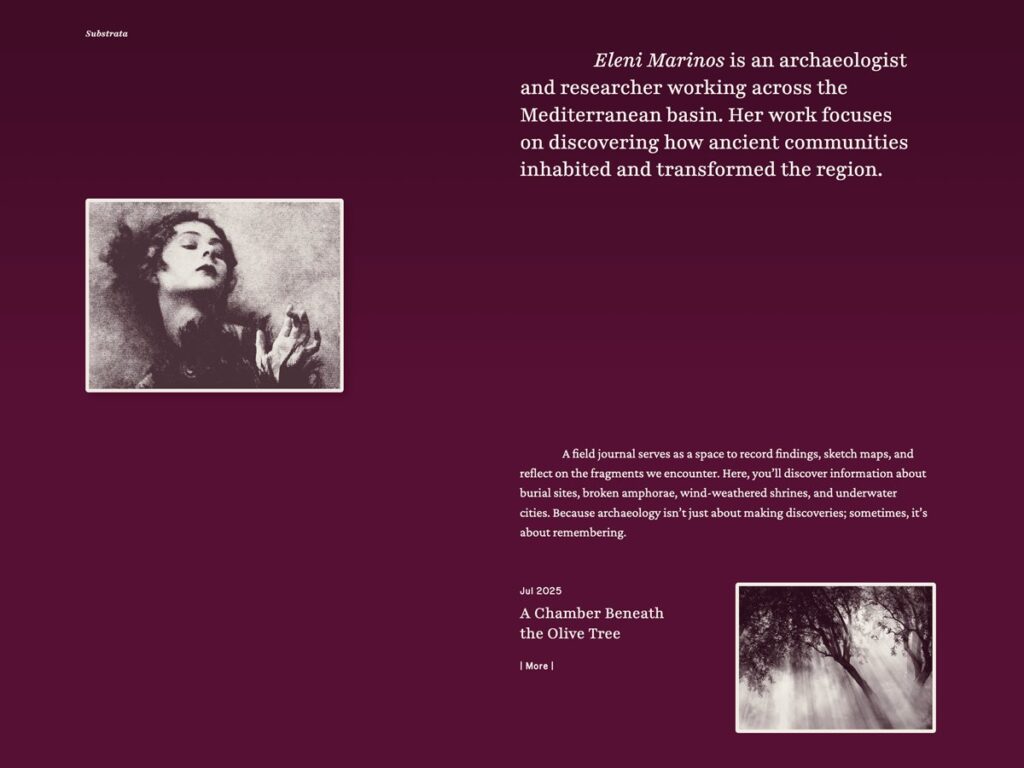
Substrata is by Automattic, the company behind WordPress.com. Its description says it was designed for researchers and writers working with field notes, and the demo is an archaeologist’s site: a research statement at the top and a journal of posts below. It has 9 color styles.
The catch: it’s a blog first. Publications and CV pages are yours to build.
Price: free, 200+ active installs. Last updated in April 2026.
LeanCV: a site shaped like a CV
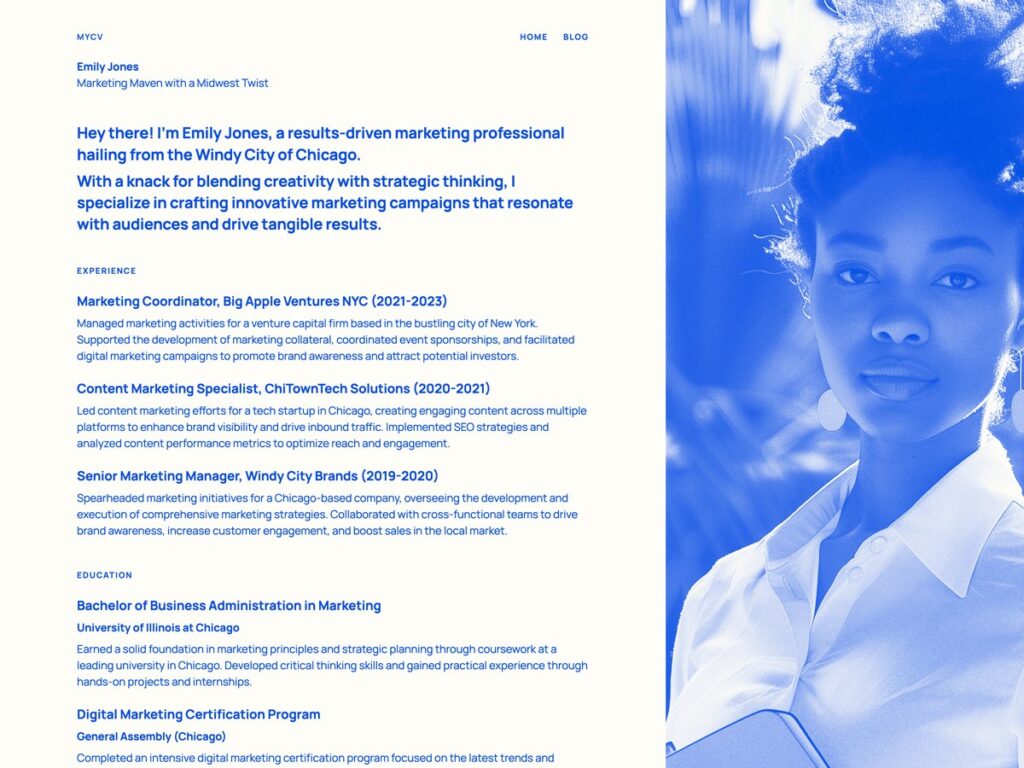
LeanCV, also by Automattic, turns the homepage into a CV: a short intro, then experience and education, one entry after another. It has 6 color styles.
The catch: it hasn’t been updated since January 2025 and was tested up to WordPress 6.7. It works in 7.1, but check it on your own site before you commit.
Price: free, 200+ active installs.
For more personal-site themes, see my list of free WordPress themes for a personal website.
Step 3. Create the pages and the menu
Go to Pages → Add Page and create Research, Publications, Teaching, CV and Contact. Then add them to the menu:
- Open Appearance → Editor → Navigation. If the site has one menu, WordPress opens it right away.
- Click + under the menu items and add the pages. Drag them into the order you want.
- Save.
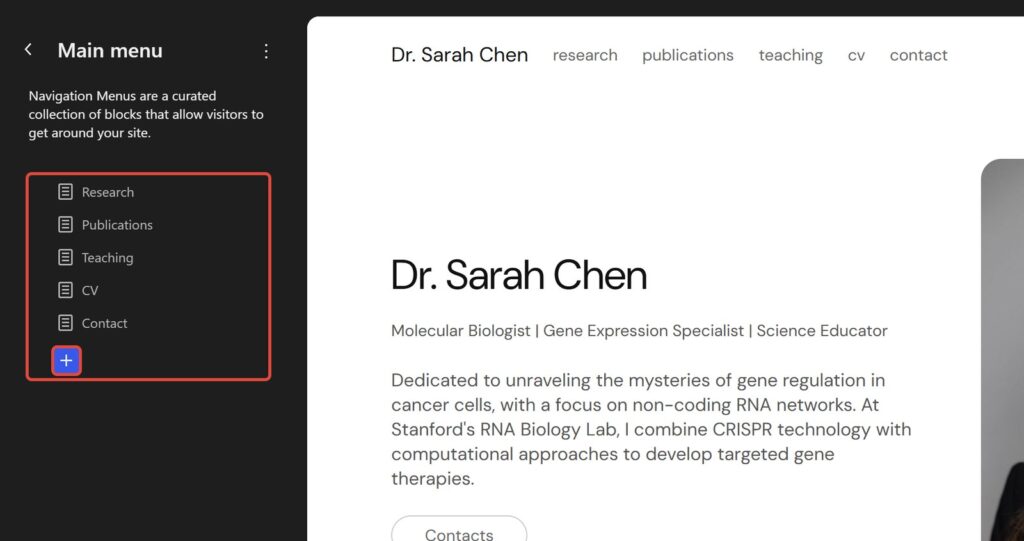
Then open Settings → General. Put your name in Site Title and your position and field in Tagline. Block themes show them in the header through the Site Title and Site Tagline blocks. Google picks the site name in results from several signals, and the site title is one of them.
Step 4. Build the homepage from patterns
Open the page in the editor, click + (Block Inserter) at the top left and switch to the Patterns tab. The theme’s patterns are grouped by category. In Makoa PRO, Full Pages holds the whole Scientist homepage. Other themes have hero, about and contact sections that you stack one under another. Insert one and replace the sample text with yours.
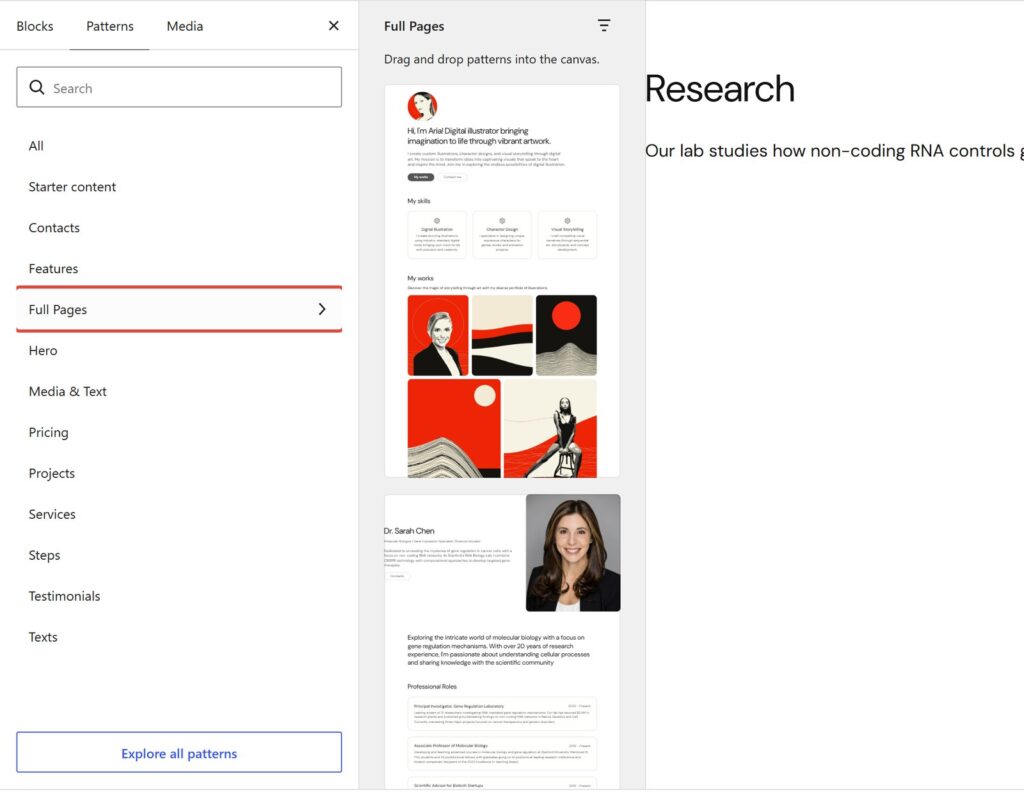
At the top, use your research summary. For example: “I study how non-coding RNA controls genes in cancer cells.”
If your homepage shows blog posts instead, go to Settings → Reading, choose A static page and pick your Home page.
Step 5. Make the publications page
For a few dozen papers, core blocks are enough:
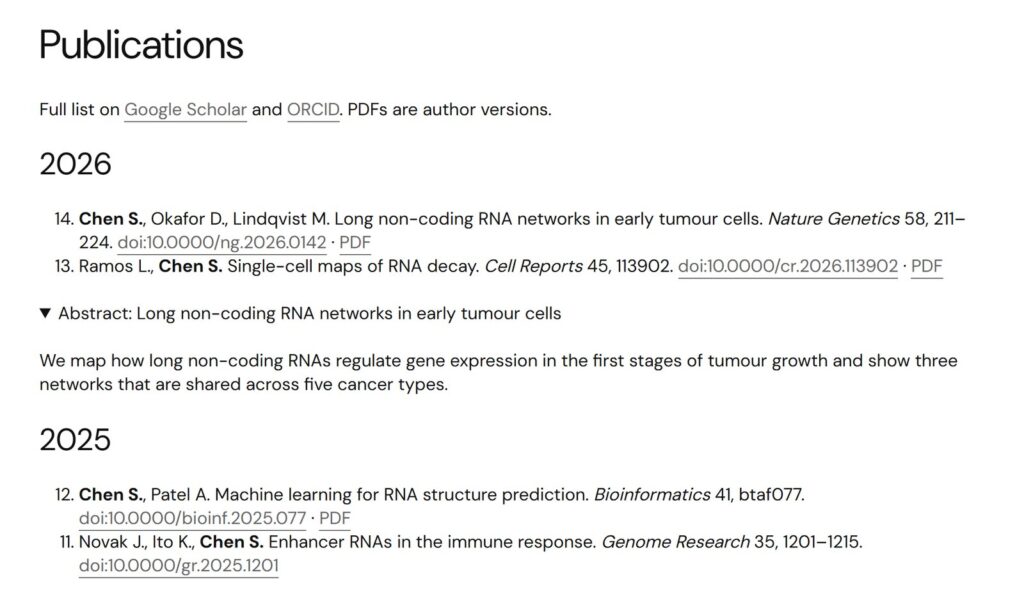
- a Heading for each year;
- a numbered List under it, one paper per item, with your name in bold;
- a link to the DOI and to the PDF in each item;
- a Details block if you want an abstract that opens on click.
Make your PDFs findable in Google Scholar. Its inclusion guidelines say that for individual authors it works best to upload the paper to your site and link it from the publications page. Each paper should be a separate PDF with the title in large type at the top of the first page and the authors on the line below. Google says a new paper is normally included within several weeks.
Check that you may share the PDF. Many publishers allow the accepted manuscript on your own site, often after an embargo. The published PDF is usually not allowed. Look up your journal in Open Policy Finder (the service formerly known as Sherpa Romeo).
If you have hundreds of papers and keep them in Zotero, the Zotpress plugin shows your Zotero library on a page, so you update the list in one place. It’s tested with WordPress 7.1.
Step 6. Add your CV as a PDF
Keep the full CV in a PDF and the short version on the site. On the CV page:
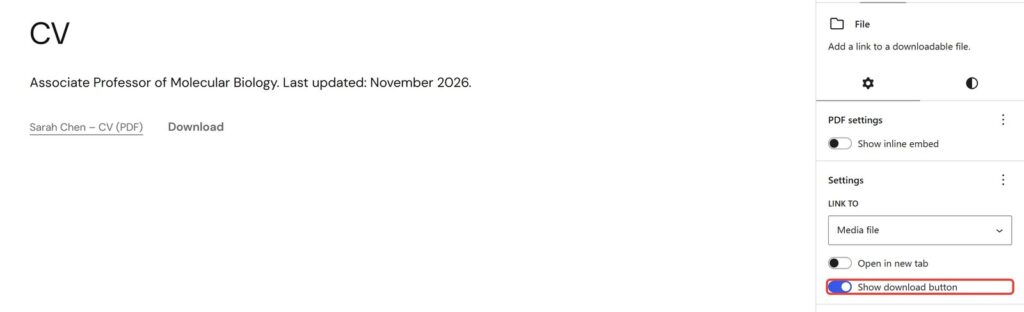
- Add a File block and upload the PDF.
- Check that Show download button is on in the block settings.
- Write the date of the last update next to it.
When you share your CV, send the link to the CV page, not to the PDF. WordPress gives every new upload its own address, so an old PDF link keeps showing the old CV. The page always shows the file you put in the block last.
Step 7. Link your ORCID and Google Scholar
The Social Icons block has icons for LinkedIn, GitHub, Bluesky, Mastodon and many more, but not for ORCID or Google Scholar. There are two ways:
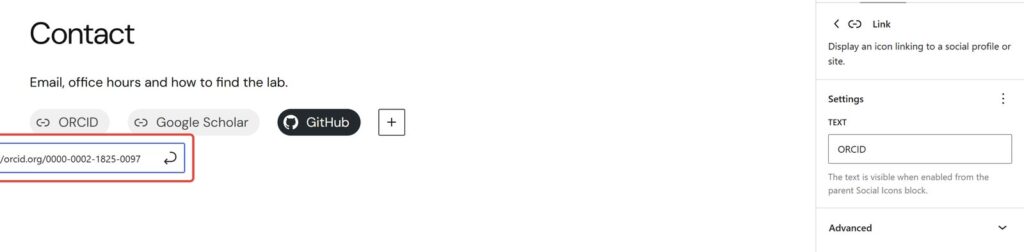
- add a Link item to the Social Icons block, paste your ORCID or Scholar address and type the name in its Text field. Turn on the text labels in the Social Icons block, so visitors see “ORCID” next to the plain link icon;
- or write the links as text, “ORCID · Google Scholar · GitHub”, in a paragraph on the homepage and the Contact page.
Also add your website to your ORCID record and your Google Scholar profile. The links then work both ways.
Before you publish
- Read the summary to someone outside your field. If they can’t repeat it, rewrite it.
- Add a new paper on the day it comes out. Put it on Publications and upload the new CV to the same File block.
- Check the phone view. In the editor, click View and choose Mobile. Long DOI links and tables break first.
- Pick a color style in Appearance → Editor → Styles. All four themes above have ready ones. Here is how to change the colors of a block theme.
The free themes above install from your dashboard: Appearance → Themes → Add New Theme, then search by name. For Makoa PRO, download the ZIP after purchase and use Upload Theme on the same screen. If you’d rather not do it yourself, I can build the site for you.