Search for how to make a portfolio in WordPress, and most guides tell you to install a portfolio plugin first. It adds its own project type, and if you turn the plugin off, the projects disappear from your site. In a block theme you can build most of it from core blocks: each project is a page, and the Portfolio page lists them by itself.
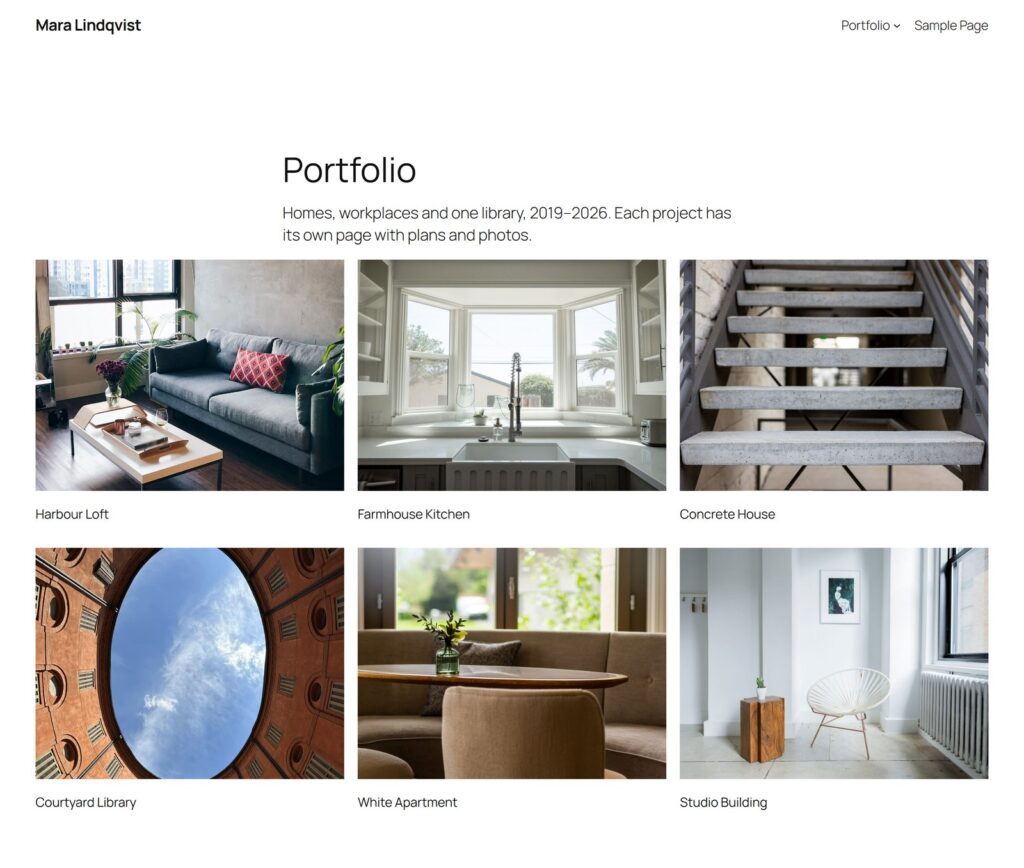
Short answer: create a page called Portfolio. Make each project its own page and choose Portfolio as its Parent. Then add a Query Loop block to the Portfolio page and set it to show pages with that parent, as a grid of featured images and titles. When you publish a new project page, it appears in the grid. I checked every step in WordPress 7.1.5 with Twenty Twenty-Five, the default theme.
Only pictures, or a page per project?
If you only show images, like a photo series or illustrations, you don’t need project pages. Put a Gallery block on the Portfolio page and turn on Enlarge on click, so visitors can open each picture full size. Here is how to add a lightbox to the Gallery block.
If each project needs its own text, like the brief and the plans, give it its own page. Here is how.
Step 1. Make a page for each project
First create an empty page called Portfolio and publish it. Then, for every project:
- Go to Pages → Add Page, type the project name as the title and add your text and photos.
- At the top of the Page panel on the right, click Set featured image. This is the picture the grid will show.
- Click the value next to Parent and choose Portfolio. Publish.
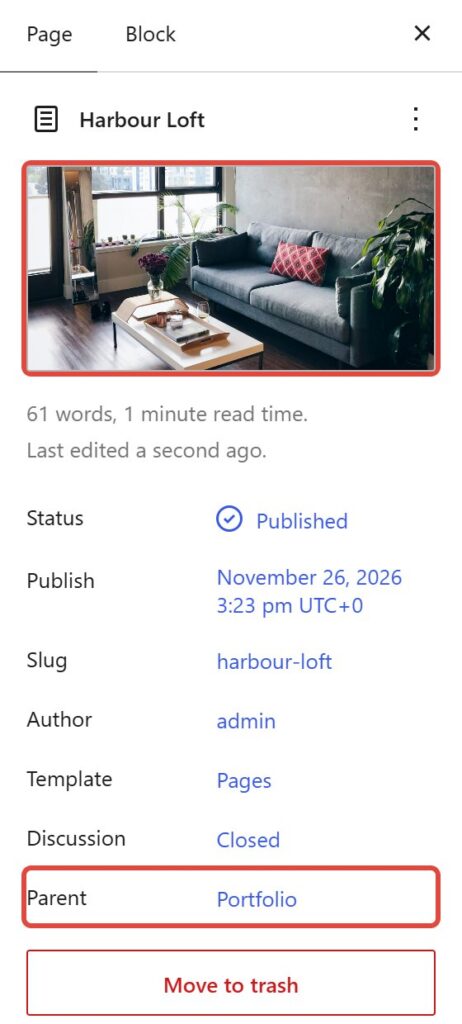
The project gets the address yourname.com/portfolio/project-name/. Pages also stay out of your blog and its RSS feed. That’s why I use pages here and not posts.
Step 2. Add a Query Loop to the Portfolio page
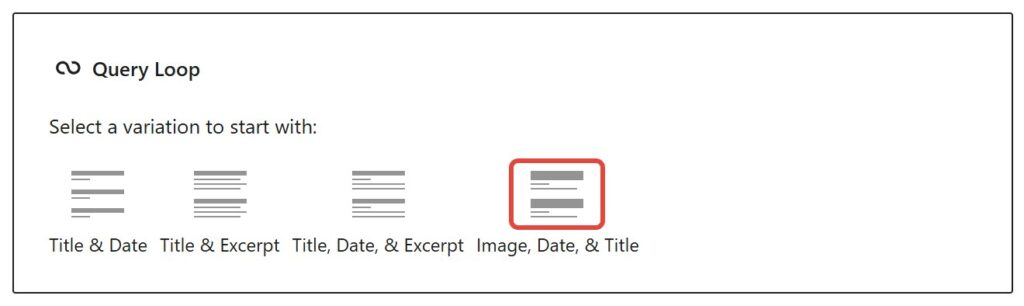
Open the Portfolio page and add a Query Loop block. Click Start blank and choose Image, Date, & Title.
Now tell the loop which pages to show:
- With the Query Loop block selected, open the Settings tab in the sidebar. Set Query type to Custom and Post type to Page.
- Set Order by to Ascending by order. This option appears only for pages.
- In the Filters panel, open the ⋮ menu, choose Parents, type Portfolio and pick it from the list.
- In the block toolbar, click Align and choose Wide width, so the grid is wider than the text above it, as in the screenshot at the top.
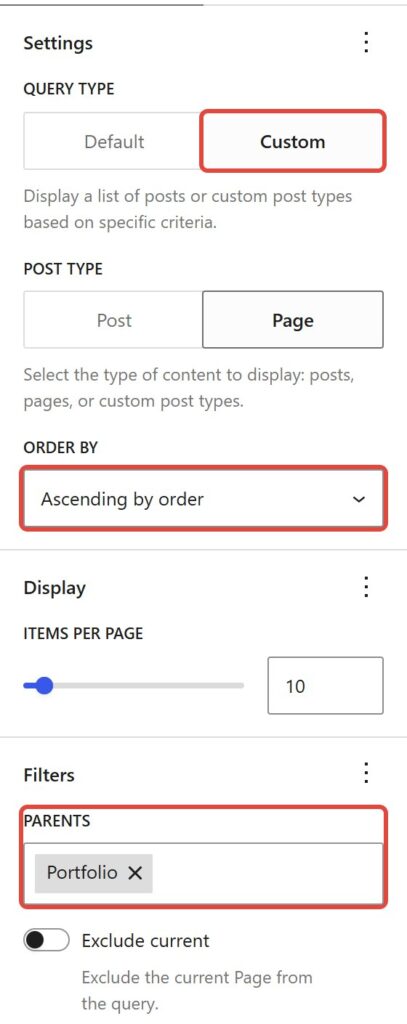
Without the Parents filter, the loop shows every page of the site, Contact and Portfolio included.
The pattern also puts a date under each image and page numbers below the grid. A portfolio rarely needs the date: select it and delete it. Keep the page numbers if you have more projects than Items per page (10 by default).
Step 3. Turn the list into a grid
Select the Post Template block inside the loop and click Grid view in its toolbar. The easiest way to select it is the Document Overview button (three lines, top left): Post Template is under Query Loop in the List View.
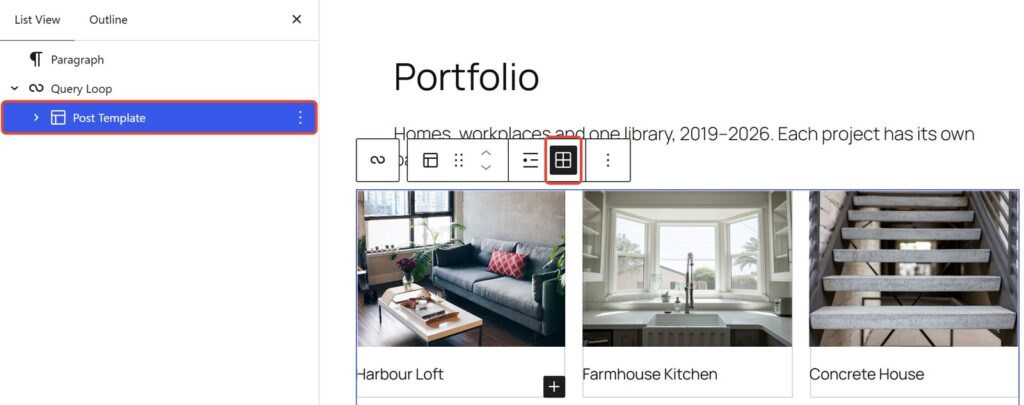
Then make the photos line up and link to the projects:
- Select the image, open the Styles tab and set Aspect ratio to Standard – 4:3. Photos of different shapes now get the same frame, so the rows line up.
- In the image’s Settings tab, turn on Make image a link. Select the title and turn on Make title a link. Now a click on either opens the project.
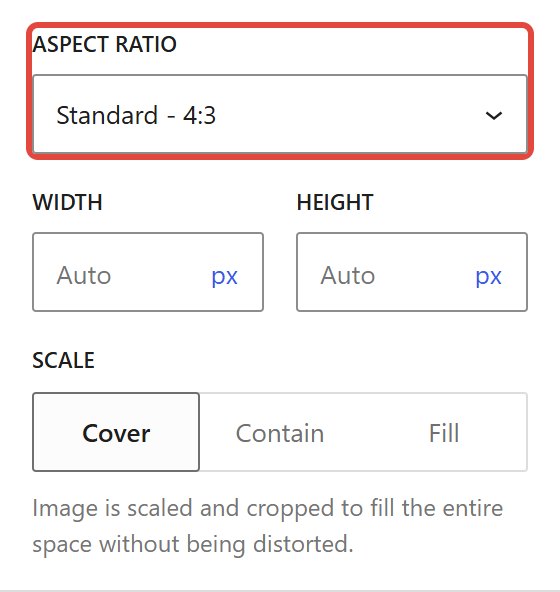
In my test, one photo was 16:9, one was square and four were 4:3. The screenshot at the top shows them after this step.
Step 4. Put the projects in order
The Page panel in WordPress 7.1 has no order field. Use the list of pages: go to Pages, hover over a project, click Quick Edit, type a number in Order and click Update. The grid shows 1 first, then 2, and so on.

Want the newest project first instead? Skip the numbers and set Order by to Newest to oldest.
What to put on a project page
Clients decide on the project page, not in the grid. Here is the page behind the first tile in my test:
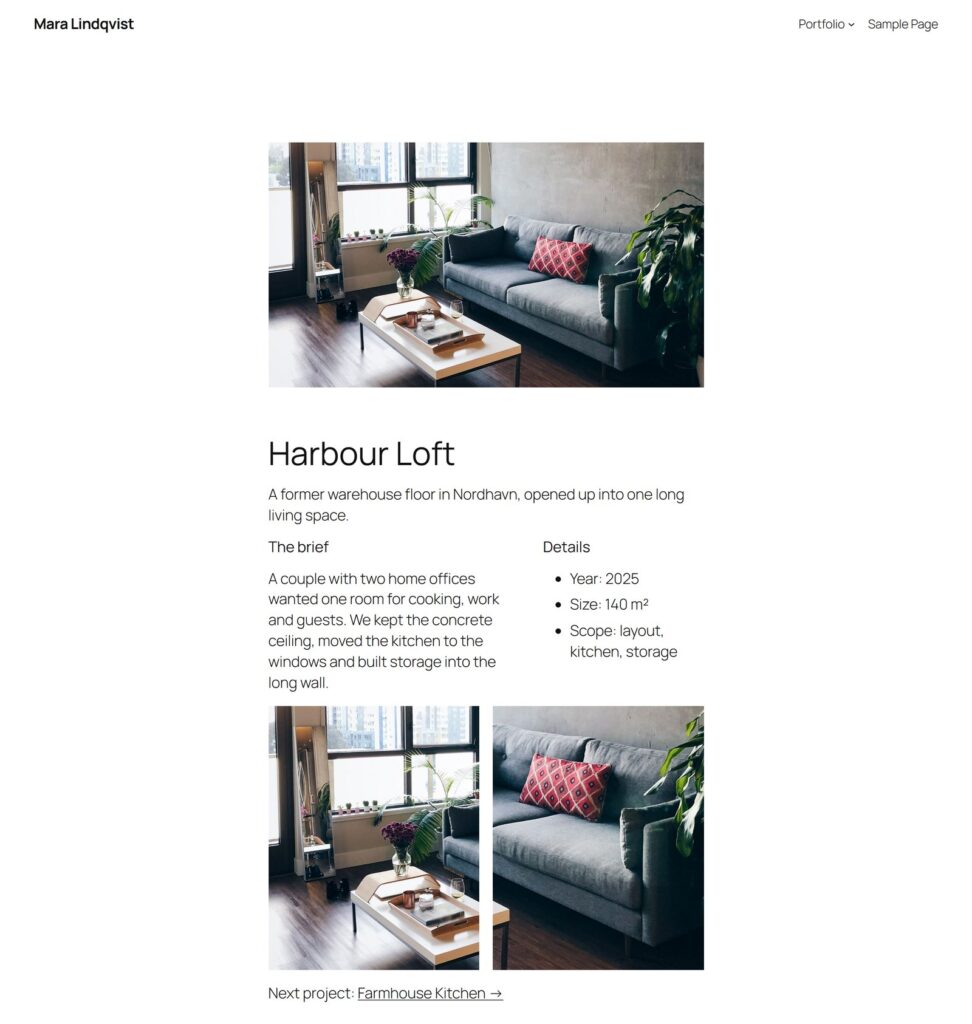
- One line under the title that says what the project is and where.
- The brief and the details side by side in a Columns block: what the client asked for, then year, size and scope.
- Photos in a Gallery block. Twenty Twenty-Five already shows the featured image at the top of the page, so don’t add it again.
- A link to the next project at the end, so visitors don’t have to go back to the grid.
Two limits: the menu and filters
- Projects can end up in your menu. If your header menu is the automatic list of pages (Twenty Twenty-Five keeps one until you edit the menu), all your projects appear in a dropdown under Portfolio. To remove them, edit the Navigation block in the header and keep only the pages you want.
- No filter buttons. Pages have no categories, so you can’t put “Interiors” and “Buildings” buttons above the grid. For two or three groups, make one parent page per group, each with its own Query Loop. If you need buttons that filter the grid without reloading the page, use a portfolio plugin.
Themes with ready project layouts
You don’t need to switch themes: everything above works in Twenty Twenty-Five and in any other block theme. A theme with project patterns only adds ready layouts for the project pages. Switching themes changes the look of your whole site, so do it only if you’d like that anyway.
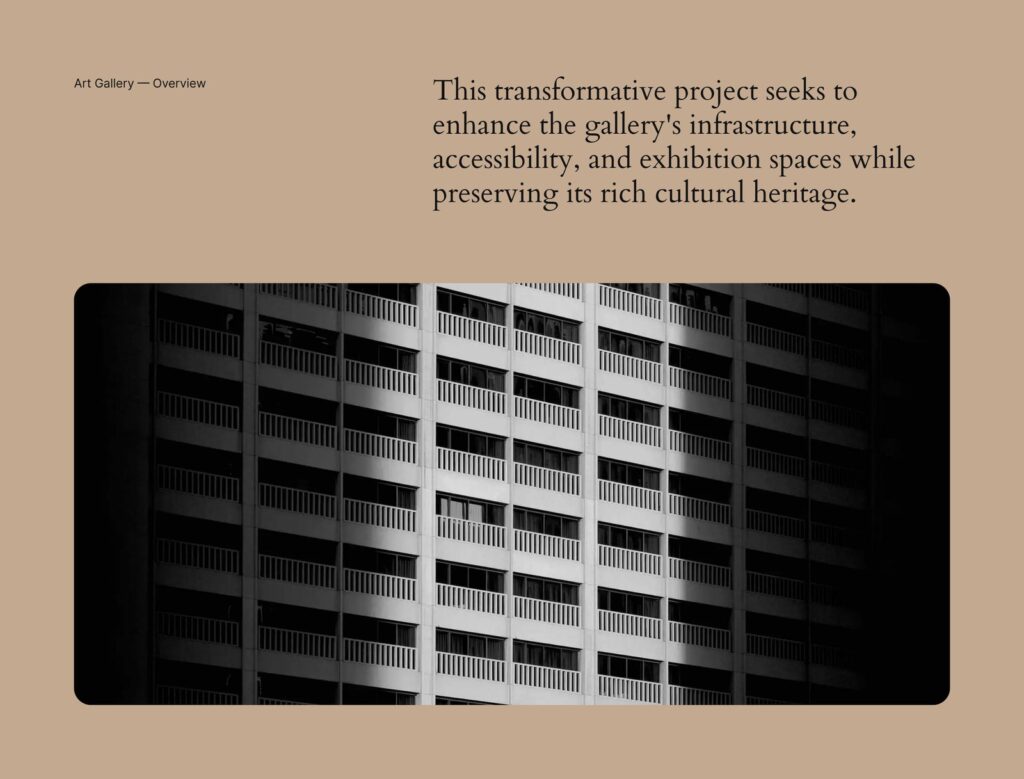
Twenty Twenty-Four, the default theme from 2024, is free and has seven portfolio section patterns and three portfolio page patterns. “Portfolio project overview” is a whole project page; “Project layout” and “Project details” are sections for one. Its portfolio home patterns list blog posts, not pages, so you still change the Query Loop as in step 2. Its patterns come with the theme, so you would switch your site to Twenty Twenty-Four. If you’re choosing a theme anyway and don’t want to pay, start here.
My Keahi PRO has two project page layouts, a long case study and a short one, plus sections you can add to a project: process photos, a gallery, a client quote, a link to the next project. Kanoa PRO has light project grid patterns. Lei PRO is a dark theme for photo-heavy work. Each costs €50 for a year of updates or €125 for life. Their project grids are patterns you fill in by hand, which works for a fixed selection of four to six projects. For a grid that grows with every new project, keep the Query Loop from step 2.
If you want a whole personal site around the portfolio, see my list of free WordPress themes for a personal website.
Two checks before you publish
- Missing featured images. A project without one shows only its title in the grid.
- The phone view. On a phone the grid becomes one column, and visitors may see only your first project or two. Put your best one first.
Don’t want to set this up yourself? I can build it for you. Tell me about your projects, and I’ll reply with a price.