In a classic theme you changed colors in the Customizer. A block theme has no Colors section there: everything is in the Site Editor, under Styles. You can switch the whole look in one click, swap only the palette, change one color of the palette, or recolor a single block.
These options look alike but behave differently. Click them in the wrong order and you lose your changes. Give a block a custom color instead of a palette color, and the next palette change passes it by. Below is what each option does and when to use it.
Everything was checked in WordPress 7.1.4 with my Makani Pro and Kanoa Pro themes. Some panels moved in WordPress 7, so older guides may send you to buttons that are no longer there.
The short answer
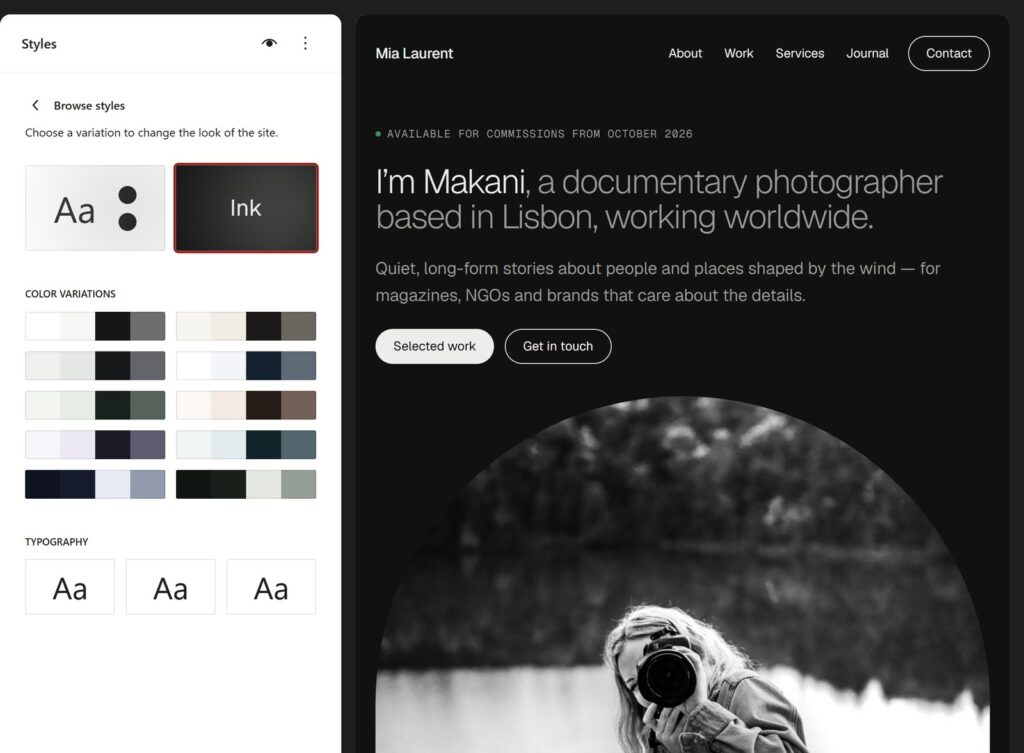
- A new look in one click: Appearance → Editor → Styles → Browse styles. Pick a style at the top or a palette under Color variations, then save.
- Your own colors: Styles → Colors → Edit palette. Click a color under Theme, type a new hex code and save. Everything that uses this color changes with it.
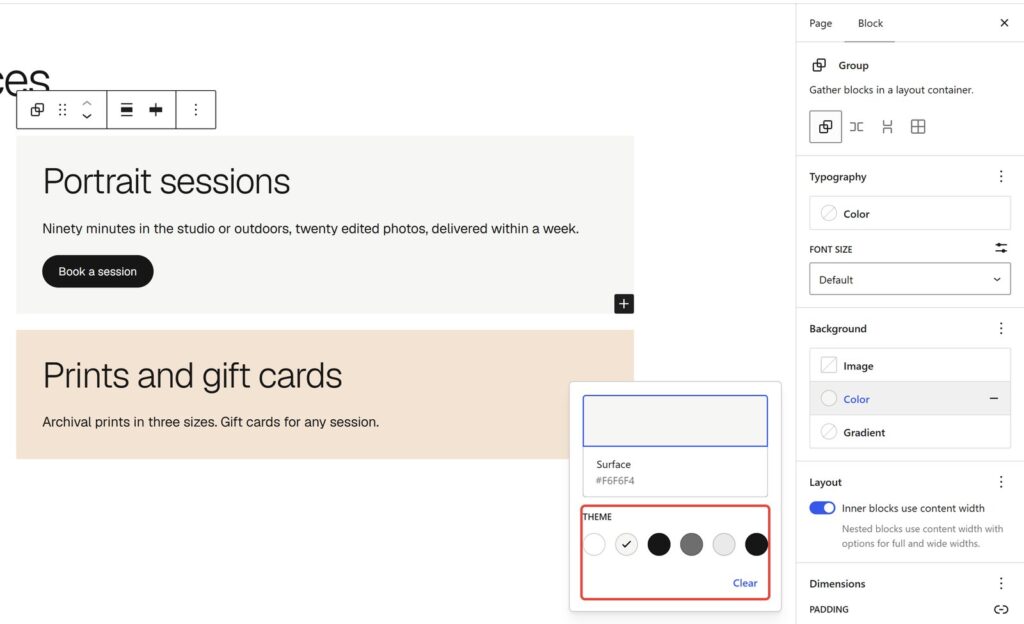
- One block: select it, then in the Block tab of the sidebar open Typography → Color for the text or Background → Color for the background. Pick a color from the theme palette.
Styles, palettes and typesets: what’s the difference
A block theme can ship ready-made variations of its design. Each one is a small JSON file in the theme’s styles folder, and WordPress sorts them by what they change:
| What you pick | Where you find it | What it changes | Example |
|---|---|---|---|
| Style | Browse styles, top row | Colors, fonts and anything else the theme author set, such as spacing or block styles | Makani Pro: Ink |
| Palette (color variation) | Browse styles → Color variations; Colors → Edit palette → Palettes | Only the colors | Makani Pro: 9 palettes, Kanoa Pro: 19 |
| Typeset (typography variation) | Browse styles → Typography; Typography → Typesets | Only the fonts | Makani Pro: Mono and Regular |
That last point confuses people. A theme page may promise “20 styles”, but if all of them only change colors, WordPress lists them as palettes, and the top row of styles stays empty. That’s the case with my Kanoa Pro: all of its 20 styles are palettes. Nothing is missing, they are one section lower.
1. Switch to a ready-made style or palette
- Go to Appearance → Editor and click Styles.
- Click Browse styles.
- Click a style in the top row for a complete new look, or a palette under Color variations to change only the colors. The preview on the right changes at once.
- Nothing is saved yet. Click Review 1 change… at the bottom left, then Save.
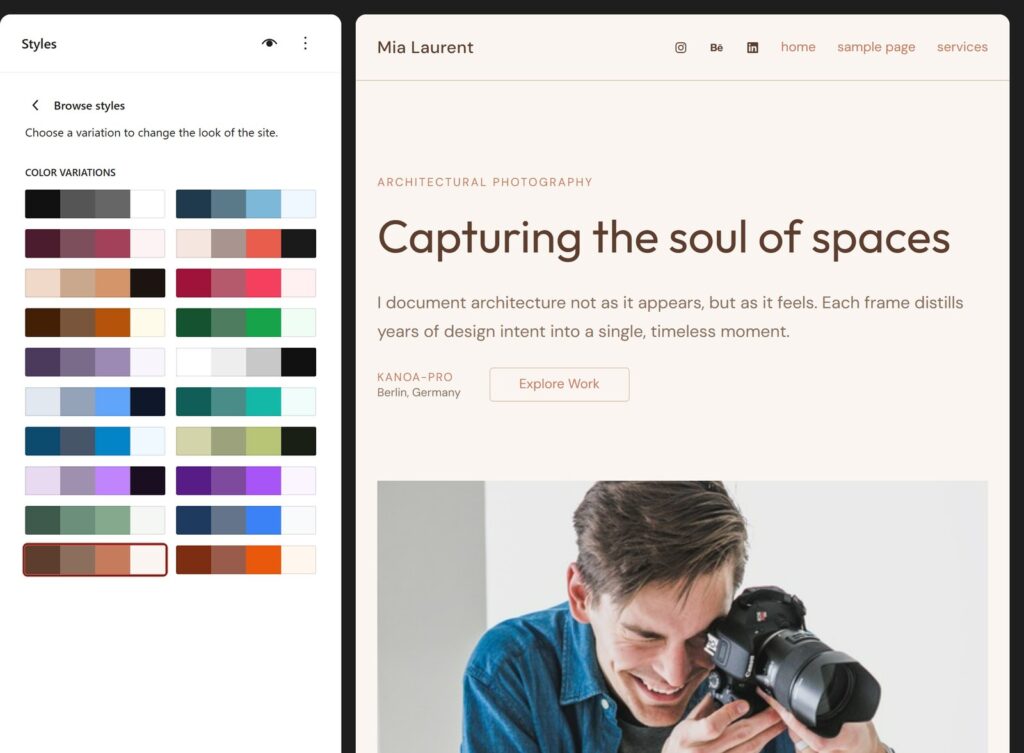
Pick the style first, the palette second
I checked what each click keeps and what it replaces:
- A style replaces everything you set in Styles: the palette, the fonts, the colors of links and buttons. Only your Additional CSS stays.
- A palette replaces only colors: the palette and the colors you set for links, buttons and headings. The fonts stay, including the fonts of the style you picked before.
- Default in the top row brings back the theme’s own design and drops your changes the same way a style does.
So work in this order: style, then palette, then your own changes. Change things first, and the next click on a style or palette throws them away. Until you save, you can still leave the editor without saving. After you save, the previous version stays in Revisions. More on that in how to reset a block theme’s styles.
2. Change a color in the palette
A block theme’s palette is a short list of named colors. Makani Pro has six: Background, Surface, Primary, Secondary, Line and Accent. The theme’s templates and patterns don’t contain color codes, they point to these names. Change Accent once, and every button that uses Accent changes with it.
- Go to Styles → Colors and click Edit palette.
- Under Theme, click a color. To see which color is which, open ⋮ next to Theme and choose Show details: you get the names and hex codes.
- Type the new code into the Hex field or drag the picker. The menu next to Hex switches to RGB or HSL.
- Click Review 1 change… and Save.
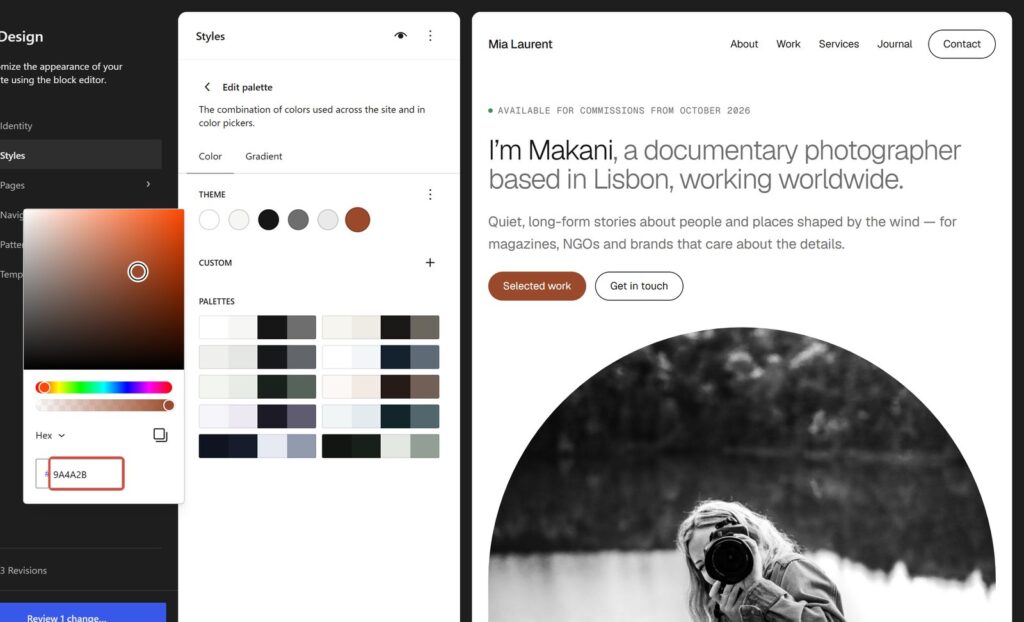
Below the theme colors is Custom with a + button. Colors you add there appear in every color picker, but they don’t change the design until you choose them for a block. Further down, under Palettes, are the theme’s ready-made palettes, the same as in Browse styles. Picking one of them replaces the colors you just edited.
3. Text, background, links and buttons
Many guides still send you to Colors for the text and background colors. In WordPress 7.1 they live in other panels:
- Site background: Styles → Background → Color.
- Body text: Styles → Typography → Text → Color.
- Links, captions, buttons and headings: Styles → Colors, under Elements. Headings can have one color for all levels or separate colors for H1 to H6.
- One type of block across the site, for example every Quote: Styles → Blocks, choose the block, then its colors.
In each of these, choose a color from the palette, not a custom one. Section 5 shows why.
4. Change the color of one block
To recolor one section, for example a group with an offer, select it and open the Block tab of the sidebar. In WordPress 7.1 the block’s colors are split as well:
- the text color is in Typography → Color;
- the background color is in Background → Color, next to Image and Gradient.
Click Color and you get the theme palette. The swatch with a check mark is the current color. The large swatch at the top opens a picker for any other color.
5. Why palette colors beat custom ones
When you pick a swatch from the palette, WordPress doesn’t save the color itself. It saves the name, for example “Surface”. When you pick a custom color, it saves the code, for example #F3E3D3. You see the difference the day you change the palette.
On the test page below, the first section uses Surface and Accent, the second a custom beige. With the default palette both look fine. Then I switched to the dark Midnight palette. The first section followed it. The second kept its beige background but got the new light text color, and the text almost disappeared.
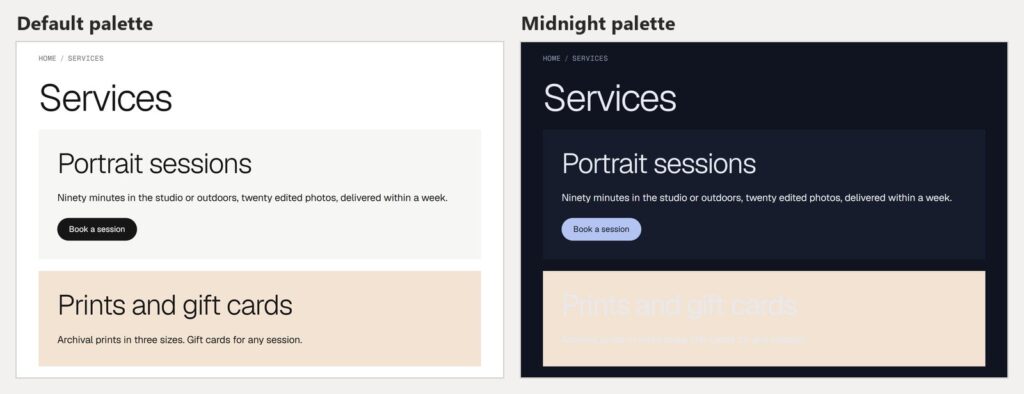
So inside blocks, stick to the palette. If one block really needs an extra color, a custom color is fine, just check that block after every palette change. To fix a block that already has a custom color, select it, open its color and click a swatch.
Why a theme update didn’t change your palette
When you pick a ready-made style or palette, WordPress copies its colors into your site’s styles. I checked: after one click on the Ocean palette in Makani Pro, the saved styles held all six color codes, not a link to Ocean. If the theme author adjusts Ocean in an update, your site keeps the old version. To get the new one, open Browse styles, click the palette again and save.
Add your own palette (for developers)
A palette is a JSON file in the theme’s styles folder. If it contains only colors, WordPress lists it under Color variations. List every color of the theme’s palette with the same slugs: a palette replaces the theme’s palette as a whole, and a slug you leave out loses its color everywhere.
{
  "$schema": "https://schemas.wp.org/wp/7.1/theme.json",
  "version": 3,
  "title": "Harbor",
  "settings": {
    "color": {
      "palette": [
        { "slug": "background", "name": "Background", "color": "#F4F7F9" },
        { "slug": "surface", "name": "Surface", "color": "#E6EDF2" },
        { "slug": "primary", "name": "Primary", "color": "#13212C" },
        { "slug": "secondary", "name": "Secondary", "color": "#5A6B78" },
        { "slug": "line", "name": "Line", "color": "#D5DEE5" },
        { "slug": "accent", "name": "Accent", "color": "#0F6E8C" }
      ]
    }
  }
}
Put the file into a child theme or your own theme. A file added to someone else’s theme disappears with the next update. If you’d rather not write JSON, the Create Block Theme plugin can turn your current styles into a new style variation.
Questions
Where is the Colors section of the Customizer?
Block themes don’t have it. For them WordPress removes Customize from the Appearance menu, unless a plugin still uses it. Colors are in Appearance → Editor → Styles.
Why don’t I see Browse styles?
The theme ships no styles, palettes or typesets. You can still change every color of its palette in Colors → Edit palette.
Will a new palette change my posts?
Only their colors, and only where they use palette colors. Text, images and layout stay as they are. Blocks with custom colors keep them.
Will a theme update reset my colors?
No. Your colors are saved in the database, separately from the theme files. Here is where they live and how to reset them.
Themes with lots of palettes
If you like to try colors, start with a theme that has many. Makani Pro has nine palettes, the Ink style and two typesets. Kanoa Pro has 20 palettes, from Arctic Frost to Warm Sunset. Lei PRO is dark by default and has 11 more palettes, from Warm Ivory to Midnight. For more dark designs, see 5 dark WordPress block themes for a portfolio. And if you want a palette made for your brand, I can set it up for you.