You changed the header, picked new colors, rearranged the blog template, and now you want the theme back the way it came. The obvious move is to delete the theme and install it again. It doesn’t work: the theme comes back with all your changes.
That’s because the Site Editor never edits the theme’s files. It saves your versions of templates and styles in the database, and WordPress uses them instead of the files. To get the original design back, you remove those saved versions. There are three places to do it, one for each kind of change.
Everything below was checked in WordPress 7.1.3 with my Makani Pro theme. In older versions some buttons are in other places.
The short answer
- Templates (blog, single posts, pages, archives): Appearance → Editor → Templates, open the ⋮ menu on the template’s card and choose Reset.
- Header and footer (template parts): open the part in the editor, then in the Template Part panel on the right open ⋮ and choose Reset.
- Styles (colors, fonts, spacing, custom CSS): Appearance → Editor → Styles, open ⋮, choose Reset styles and save.
Your posts, pages, media and menus stay where they are. Only the design goes back to the theme’s version.
Why reinstalling the theme doesn’t reset it
A block theme is a folder of files: templates, template parts, patterns, and theme.json with colors and fonts. When you save a change in the Site Editor, WordPress leaves those files alone. It writes a copy to the database, labels it with the theme’s name, and from then on the copy wins over the file.
Deleting the theme removes the files but not the copies. I tested it: I changed a template, the header and the colors in Makani Pro, switched to Twenty Twenty-Five, deleted Makani Pro and installed it again. When I switched back, all three changes were there.
The copies stay even when you stop using a theme. The database of this site still holds saved styles for two themes it no longer uses.
| What you changed | Where WordPress keeps it | How to reset |
|---|---|---|
| A template: Blog Home, Single Posts, Pages, archives, 404 | wp_template | Templates → ⋮ → Reset |
| The header, the footer or another template part | wp_template_part | Open the part → ⋮ → Reset |
| Colors, fonts, spacing, block styles, the style variation, additional CSS | wp_global_styles | Styles → ⋮ → Reset styles |
Before you reset
Resetting a template or a template part can’t be undone. WordPress deletes your saved copy for good; it doesn’t go to the trash. Styles are safer, because every saved version stays in Revisions. So take two minutes first:
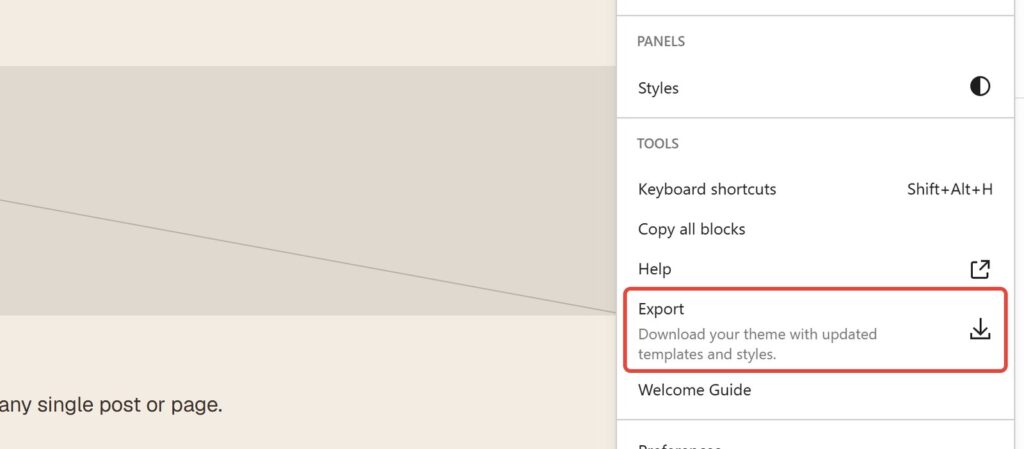
- Export your current design. Open any template in the editor, click ⋮ in the top-right corner and choose Export. WordPress downloads the theme as a ZIP with your templates and styles inside. If you miss something later, you can copy it from there.
- Reset only what you need. If one template went wrong, reset that template and keep the rest.
A reset doesn’t touch:
- posts, pages and media;
- navigation menus, which are saved separately;
- patterns you saved yourself;
- fonts you installed in the Font Library (after a styles reset they stay installed, just unused);
- the site title, tagline and logo;
- templates you created yourself, such as a custom page template. The theme has no original for them, so their menu offers Delete instead of Reset.
1. Reset a template
Templates control whole types of pages: the blog, single posts, pages, archives, search results and the 404 page.
- Go to Appearance → Editor and open Templates.
- Find the template you changed. You can type its name in the search box.
- Hover over its card and click the ⋮ button in the top-right corner. If the menu only says Edit, the template is still the theme’s original. If it also says Reset, it has your changes.
- Choose Reset and confirm in the dialog “Reset to default and clear all customizations?”.
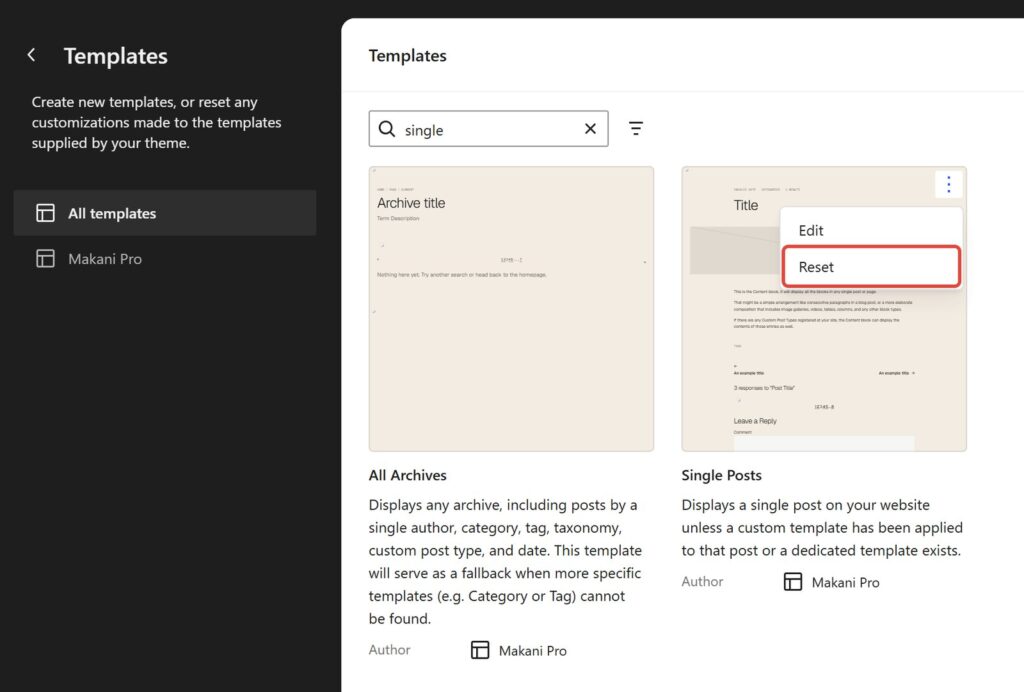
A short notice confirms it, and the template is back to the theme’s version. The same Reset is also inside the editor: open the template and click ⋮ next to its name in the Template panel on the right.
2. Reset the header or footer
The header and footer are template parts: pieces that several templates share. Change the header in one template and it changes everywhere, and a reset works the same way.
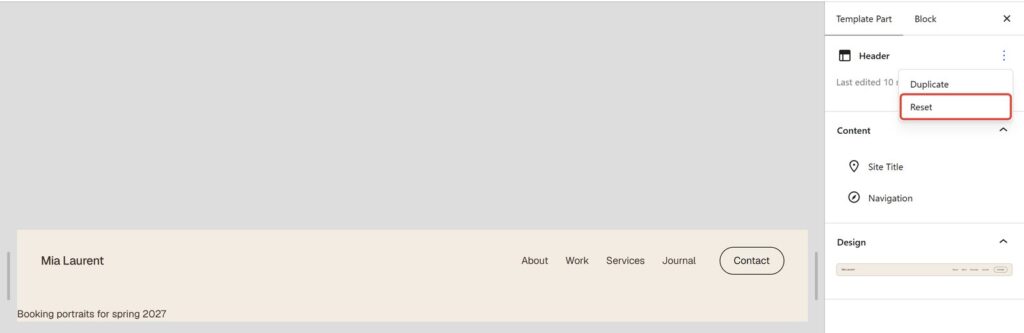
In WordPress 7.1 the list of template parts doesn’t have Reset in its menu, only Edit. The button is inside the editor:
- Go to Appearance → Editor → Patterns and choose Header or Footer under the template parts.
- Click the part’s card to open it in the editor.
- In the Template Part panel on the right, click ⋮ next to the part’s name and choose Reset. Confirm the reset.
3. Reset styles: colors, fonts and spacing
Styles hold everything you set for the whole site: the palette, fonts and sizes, spacing, the look of individual blocks, the style variation you picked and your additional CSS.
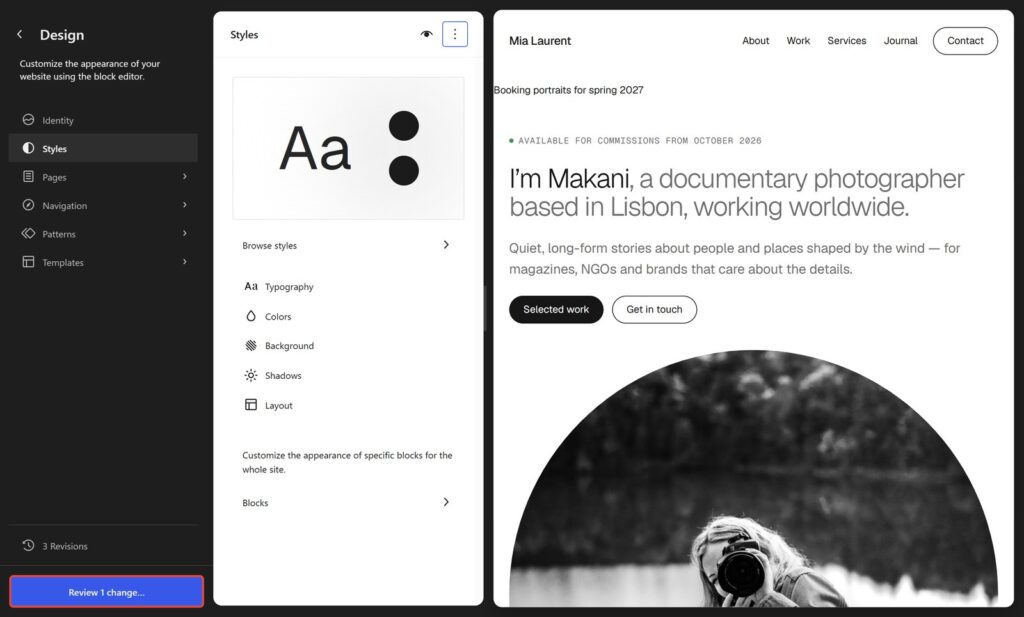
- Go to Appearance → Editor → Styles.
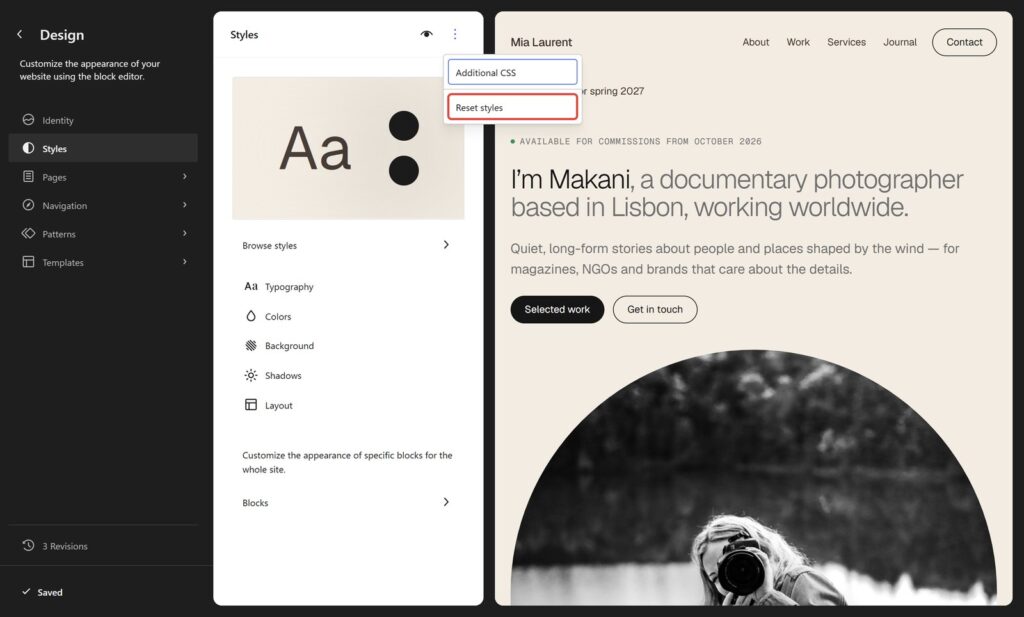
- Click ⋮ at the top of the Styles panel and choose Reset styles.
- The preview switches to the theme’s default look right away, but nothing is saved yet. Click Review 1 change… at the bottom left, then Save.
Changed your mind? Use Revisions
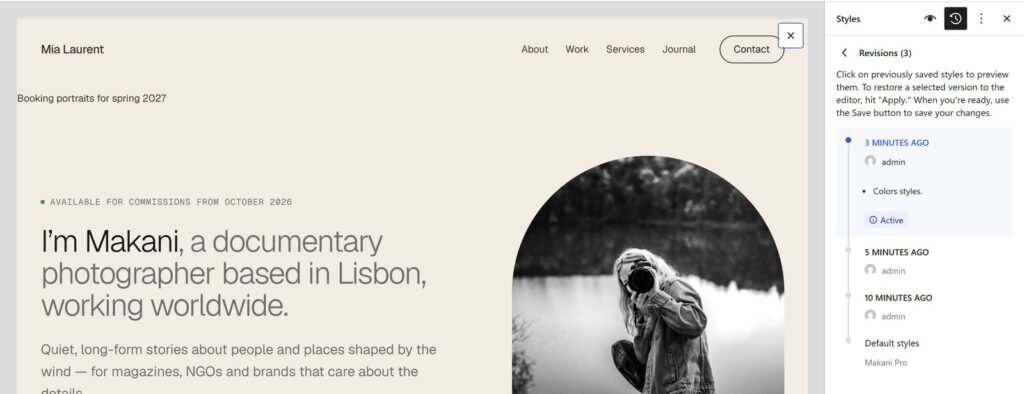
Every time you save styles, WordPress keeps the previous version. Click the Revisions button at the bottom of the Design panel, select an older version, click Apply and save. This works after a reset too: the version you had before it is still in the list.
Reset everything with WP-CLI
If you manage the site over SSH, WP-CLI shows all saved customizations in one list:
wp post list --post_type=wp_template,wp_template_part,wp_global_styles --fields=ID,post_type,post_nameTo see only one theme, add the name of its folder:
wp post list --post_type=wp_template,wp_template_part --wp_theme=makani-pro --fields=ID,post_type,post_nameDeleting an entry does the same as Reset in the Site Editor. Deleting the wp_global_styles entry resets that theme’s styles and removes their revisions. Back up the database first:
wp db export before-reset.sql
wp post delete 123 124 --force
Why a theme update didn’t change your site
It’s the same mechanism from the other side. When a theme update fixes a template, the fix goes into the theme’s files. If your site has a saved copy of that template, WordPress keeps showing the copy, and the fix never reaches you.
Here is an example from my own themes. Makoa PRO 1.1.1 fixed the archive and search templates so that category pages and search results show the right posts. If you had edited the archive template before the update, your copy still had the old bug.
So after an update, check the changelog. If it mentions a template you edited, reset that template and redo your edits on top of the new version.
Questions
Will a reset delete my posts or pages?
No. A reset only removes your saved copies of templates and styles. Content, media, menus, users and settings stay.
Can I undo a reset?
For styles, yes: restore the previous version in Revisions. For templates and template parts, no. That’s why it’s worth exporting the theme first.
Does switching to another theme reset my changes?
No. Changes are saved per theme. Switch back, and they are there again.
Why is there no Reset in the menu of my template?
Either the template has no changes, or you created it yourself. A template you created has no original in the theme, so you can delete it, but there is nothing to reset it to.
Start again from a clean theme
Sometimes people reset because their edits drifted too far from the original design. Then the theme itself may not fit. My block themes come with ready-made home pages and patterns for personal sites, so there’s less to rebuild by hand. If you’re still choosing, see 5 free WordPress themes for a personal website. And if you’d rather not do it yourself, I can set up the theme for you.