WordPress opens gallery photos full screen without a plugin. The lightbox is built in, and since WordPress 7.0 it has arrows to move from one photo to the next. Before 7.0, you needed a plugin for that.
Short answer: select the Gallery block, click Link in its toolbar and choose Enlarge on click. Then save the page. I checked every step in WordPress 7.1.4 with a block theme.
Turn on the lightbox for a gallery
- Click the gallery once, so the whole Gallery block is selected, not one image. The breadcrumb at the bottom of the editor says Gallery.
- In the block toolbar, click Link (the chain icon).
- Choose Enlarge on click.
- Save the page.
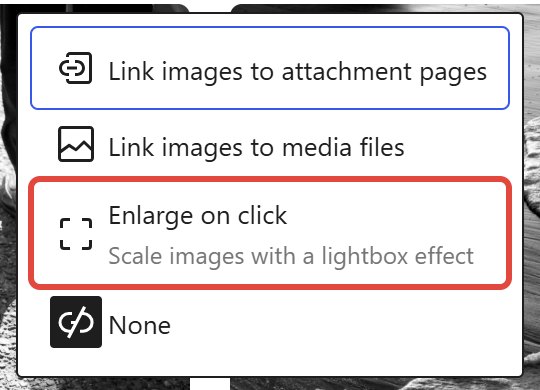
WordPress switches the lightbox on for every image in that gallery at once. Each gallery has its own setting, so you can leave others as they are.
What visitors see
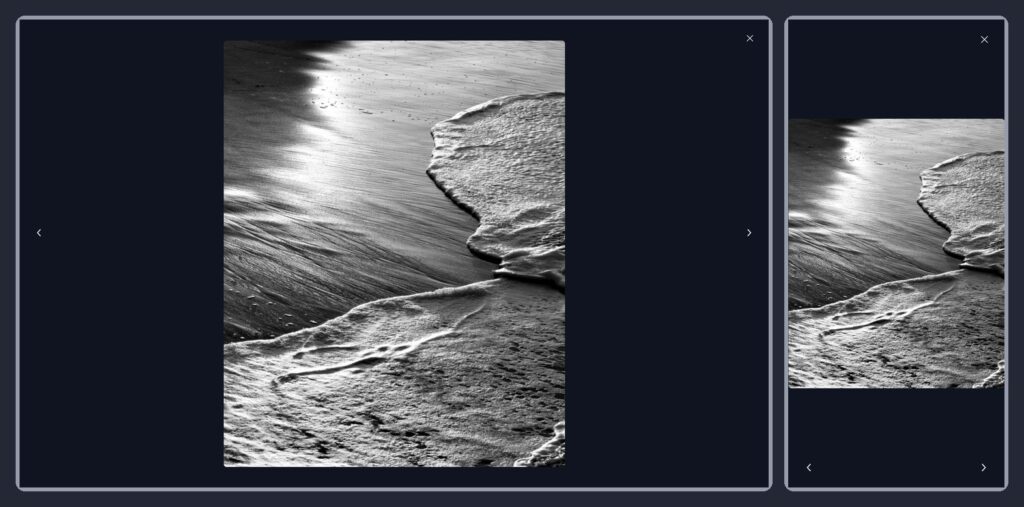
- The photo opens large, on top of the page. The background takes the theme’s background color: white in a light style, dark in a dark one. For a black background behind your photos, pick a dark style in Styles (here is how to change the colors of a block theme).
- Arrows on the sides go to the previous and next photo of the same gallery. The arrow keys on the keyboard work too, and Escape closes it.
- On a phone, the arrows move to the bottom of the screen.
- Screen readers announce “Enlarged image 2 of 6” and then the alt text, so every photo needs alt text.
The arrows need WordPress 7.0 or newer. On 6.x the lightbox opens one photo at a time. Your version is in Dashboard → Updates.
Change the arrows to text
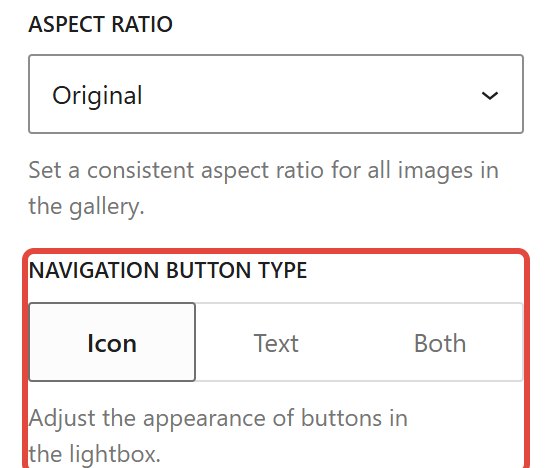
Select the gallery again and open the Settings tab in the sidebar (the gear icon). At the bottom, Navigation button type has three options: Icon (the default), Text or Both. With Text, the buttons show words instead of arrows.
A single image
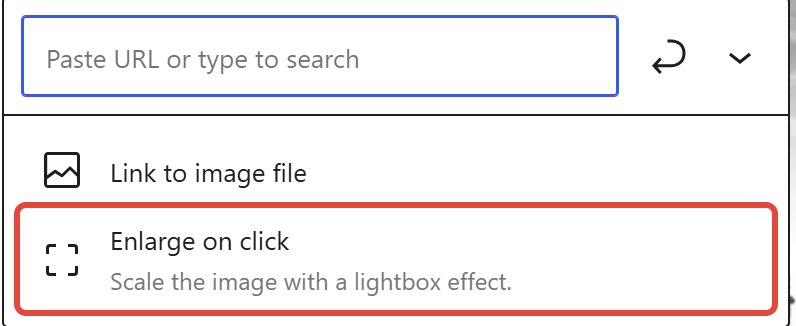
The Image block has the same option. Select the image, click Link and choose Enlarge on click. A single image opens without arrows.
Every image on the site
One setting turns it on for every image:
- Go to Appearance → Editor → Styles.
- Open Blocks and then Image.
- At the bottom, under Settings, turn on Enlarge on click. Save.
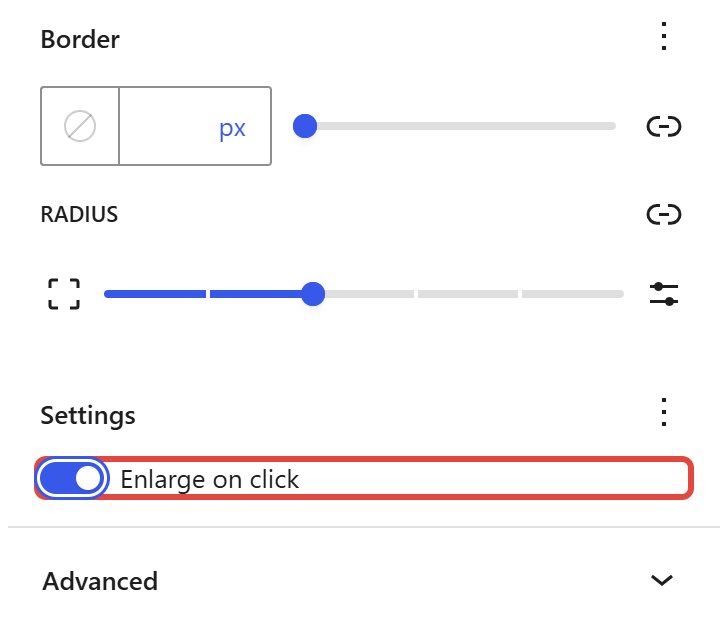
I tested what this does to existing content. A gallery set to None also opens in the lightbox once the site-wide setting is on. An image that links to its file keeps the link. This setting lives in Styles, so it needs a block theme.
For theme developers: theme.json
A theme can set the default in theme.json. enabled turns the lightbox on for all images. allowEditing set to false hides the option from the editor. The example below turns the lightbox on and keeps the option.
{
  "version": 3,
  "settings": {
    "blocks": {
      "core/image": {
        "lightbox": {
          "enabled": true,
          "allowEditing": true
        }
      }
    }
  }
}
With allowEditing off, “Enlarge on click” disappears from the menu, but galleries that were already saved with it keep their lightbox.
“Enlarge on click” is missing
- The image already has a link. A link to the image file, an attachment page or any URL replaces the lightbox. Open the same Link menu and choose Enlarge on click instead.
- The theme turned it off. If
allowEditingisfalsein the theme’stheme.json, the option is not in the menu. Ask the theme author, or set it totruein a child theme’stheme.json. - It’s not the core Gallery block. Galleries from page builders and gallery plugins have their own settings. Look for the Gallery block name in the breadcrumb at the bottom of the editor.
- The arrows are missing, not the lightbox. Update WordPress to 7.0 or newer.
What the built-in lightbox doesn’t do
- No captions. The caption stays under the thumbnail on the page. In the lightbox only screen readers get the alt text.
- It loads the full-size file, not a thumbnail. WordPress scales uploads larger than 2560 pixels down to that size, so that is the most a visitor gets. I export portfolio photos at 2560 pixels on the long side and around 500 KB, so each one opens fast.
- Images only. It doesn’t open videos.
- No separate background setting. The lightbox always uses the background color of your style.
If you need captions inside the lightbox, you still need a gallery plugin with its own lightbox.
The themes in the screenshots
The screenshots are from my Makani Pro. It uses the core Gallery and Image blocks, like my Kanoa portfolio theme and the free Anastasi for black-and-white photos, so all of this works in them. For more, see my list of dark WordPress block themes for a portfolio.
If you’d rather not set up the site yourself, I can build it for you.